CHRONOS & CODE · CONTRIBUTOR HELP CENTER
How to submit your work
A visual walkthrough for sharing technical articles and eligible research through Chronos & Code. Follow the real screens shown below, from creating an account to receiving editorial decisions.
PART ONE
Create your contributor account
One MyCC account gives you access to both the article and research contributor workspaces. This is separate from WordPress administrator access.
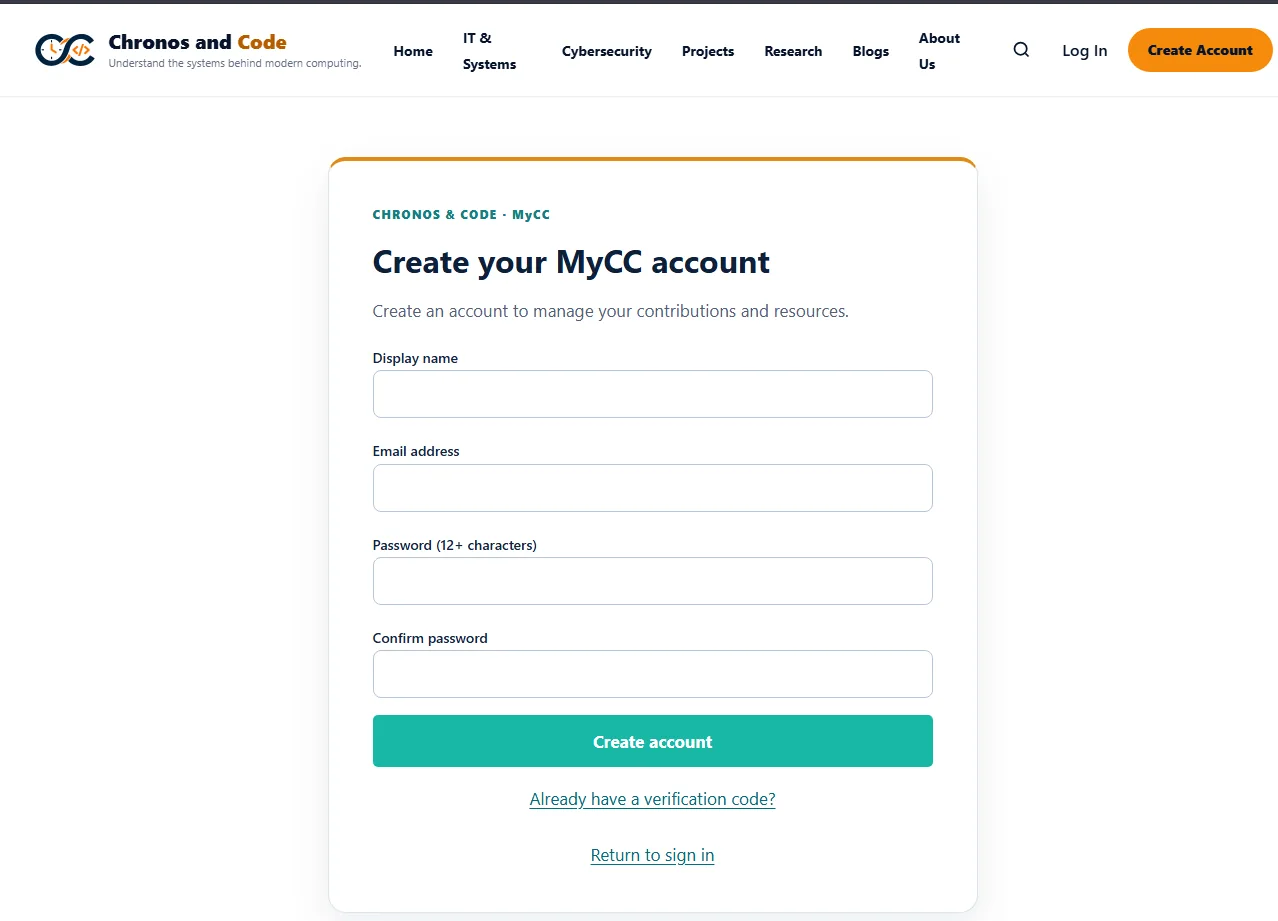
Create your MyCC account
Select Create Account from the website header. Enter your display name, email address, and a password of at least 12 characters. Follow any verification instructions sent to you.
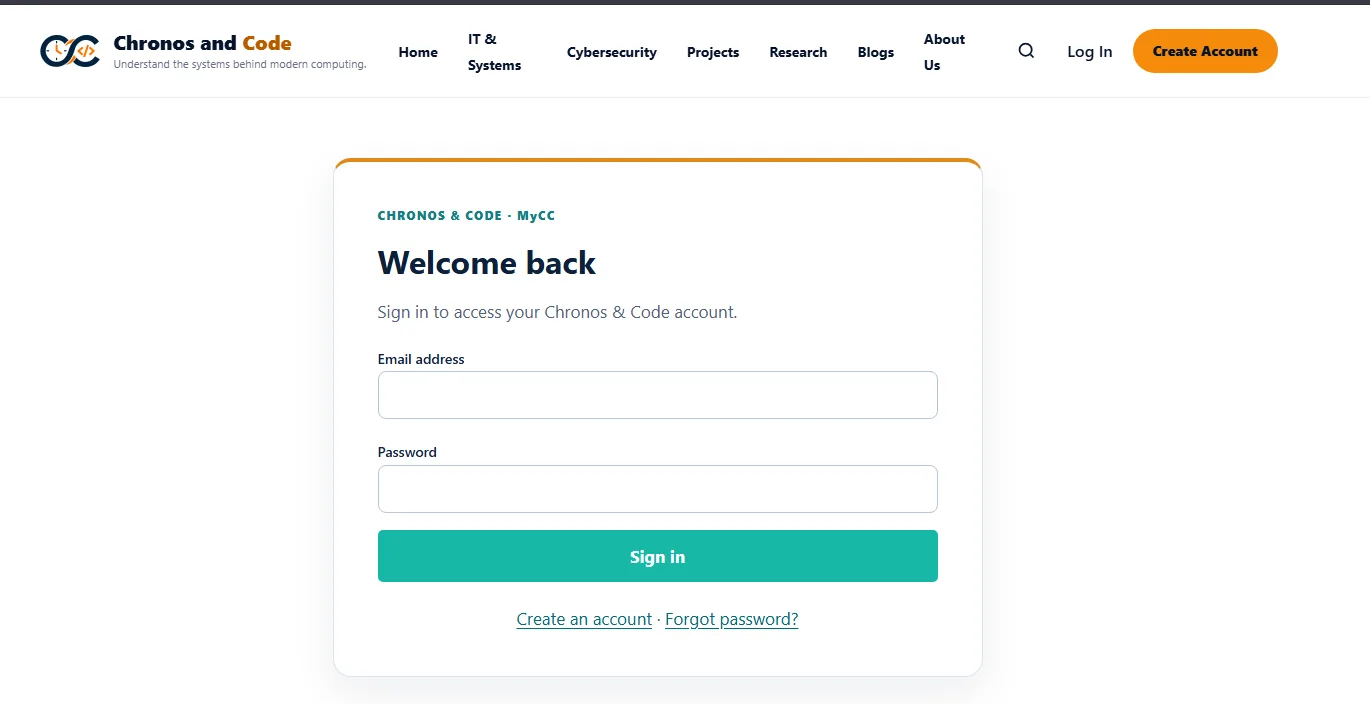
Sign in
Select Log In, enter your MyCC credentials, and use Sign in.
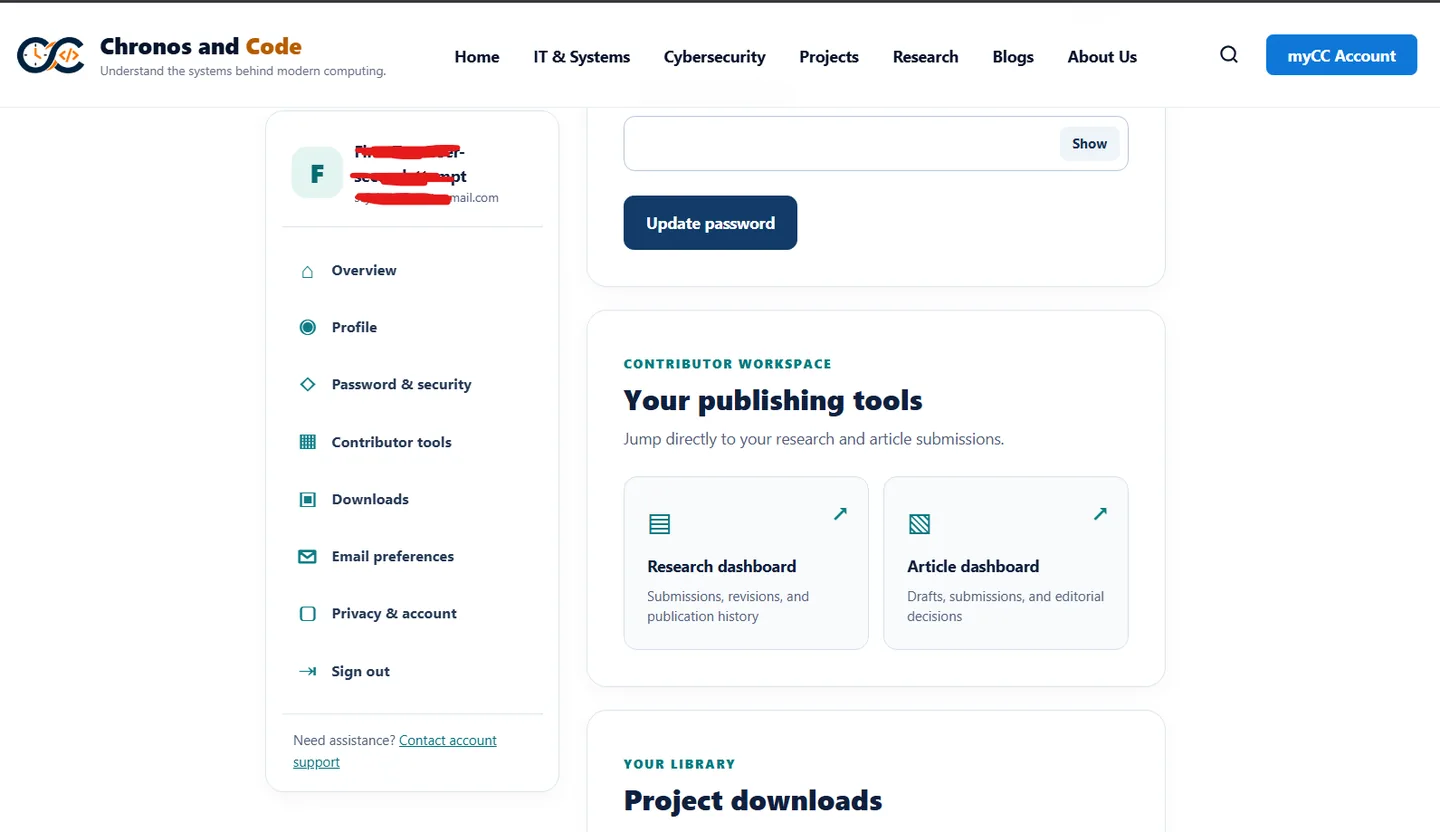
Open your contributor tools
In myCC Account, open Contributor tools and choose the Research dashboard or Article dashboard.
PART TWO · ARTICLES
Submit a technical article
Use the article pathway for tutorials, project write-ups, explainers, practical guides, and original technical analysis. Every submission is editorially reviewed before it can appear publicly.
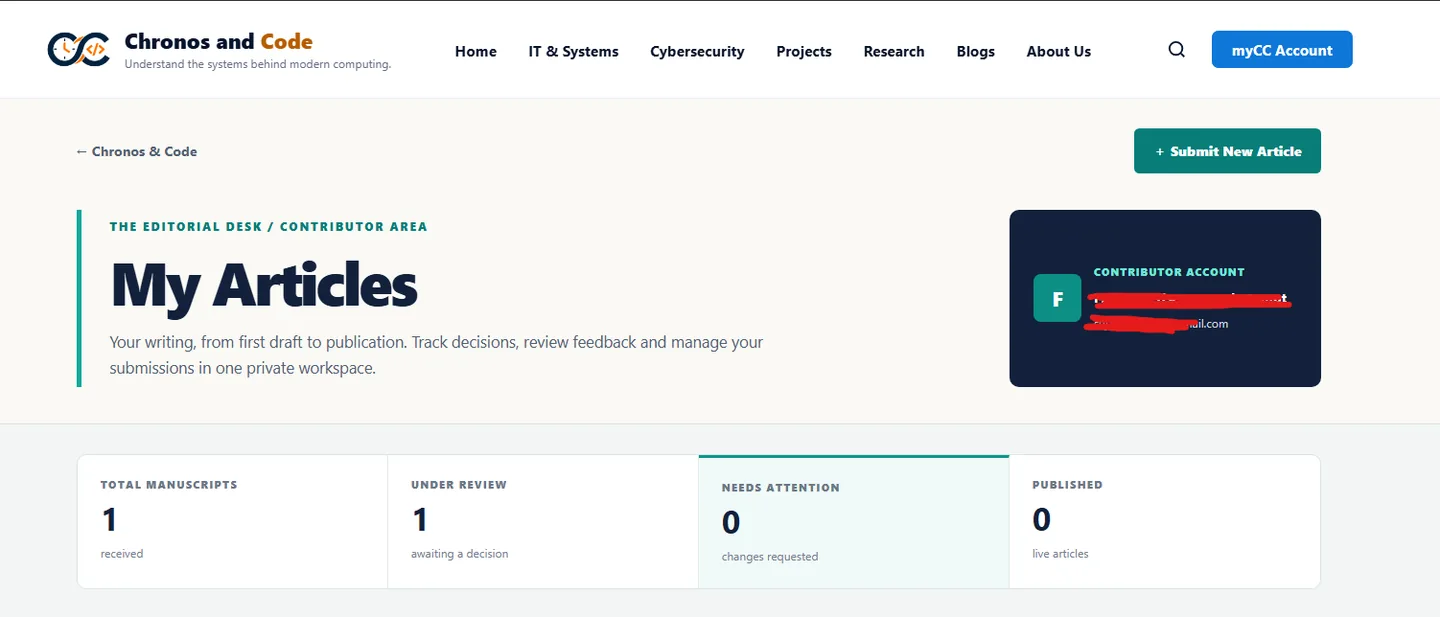
Open My Articles
In the Article dashboard, use + Submit New Article to begin a submission. The dashboard also shows manuscripts under review, needing attention, and published.
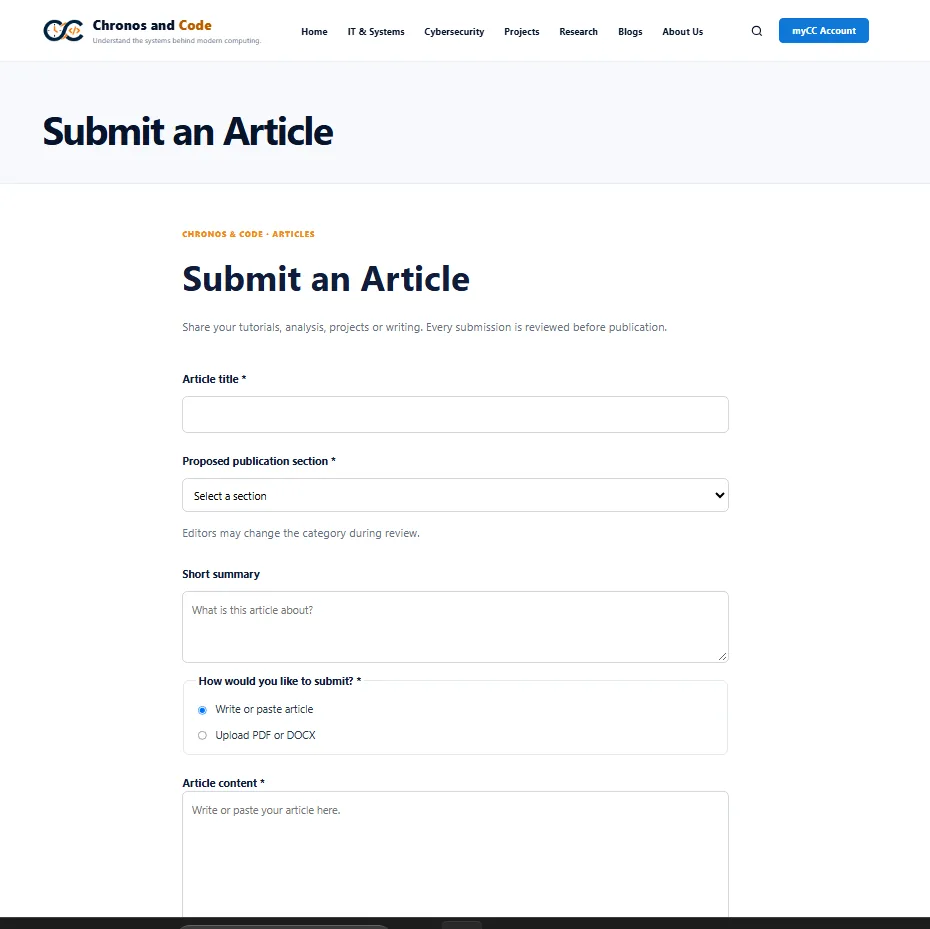
Complete the article form
Provide a title, proposed publication section, and a short summary. Choose to write or paste the article, or upload a supported PDF/DOCX manuscript. Complete any remaining required fields and media requirements displayed on the form.
Review rights and authorization
Read the Article Submission Policy. Confirm you have the rights to submit the work, then make the separate publication-authorization declaration only if you have the required permissions.
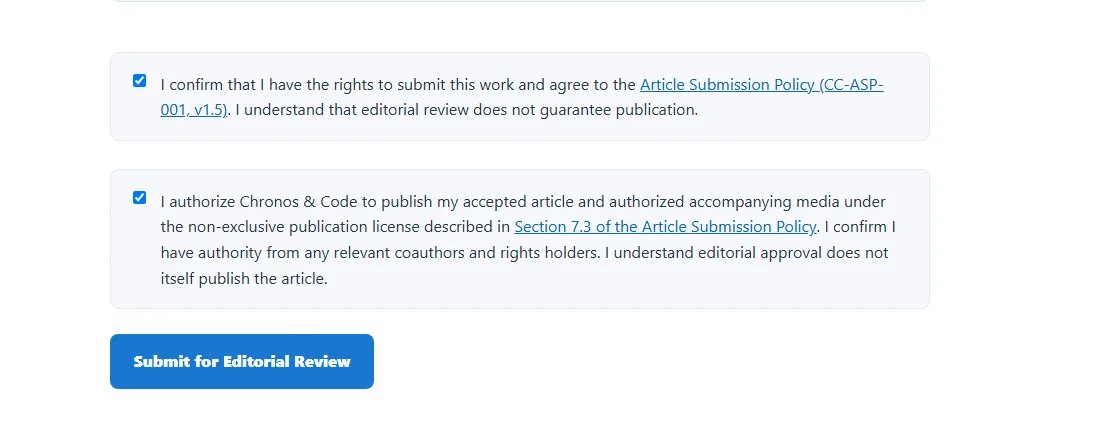
Send for editorial review
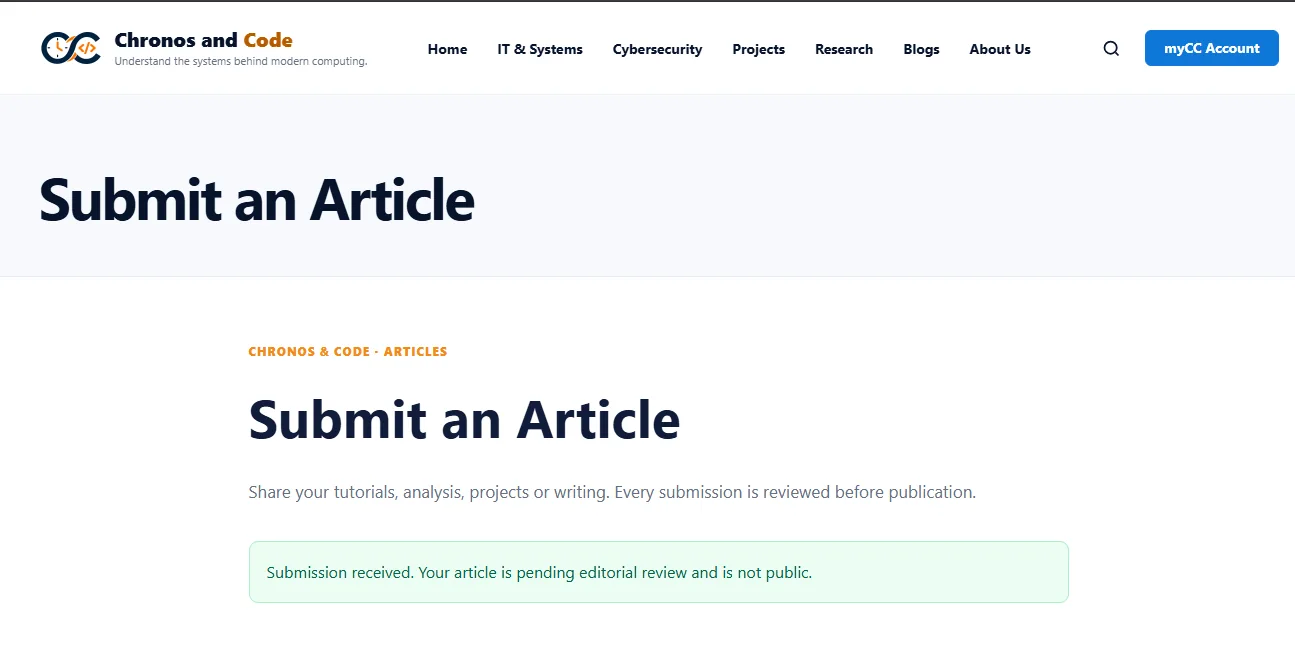
Select Submit for Editorial Review. A successful submission displays a receipt message and remains private while awaiting review.
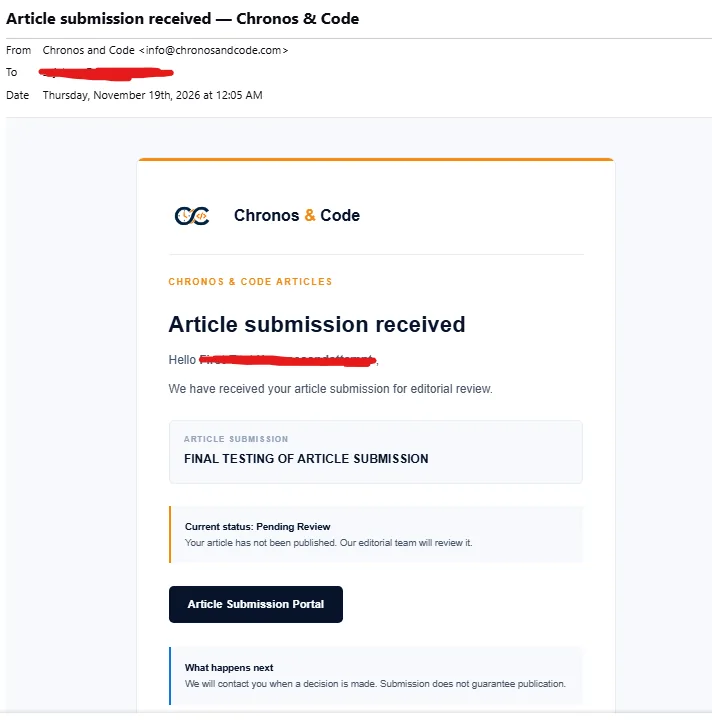
Article confirmation email
You should also receive a submission acknowledgement. Keep the message for reference and use the Article Submission Portal link when you need to return to your record.
PART THREE · RESEARCH
Submit research
Use the research pathway for eligible preprints, working papers, and previously published research where you hold the required rights. Chronos & Code provides moderated repository hosting; it is not a peer-reviewed journal.
Open the research submission form
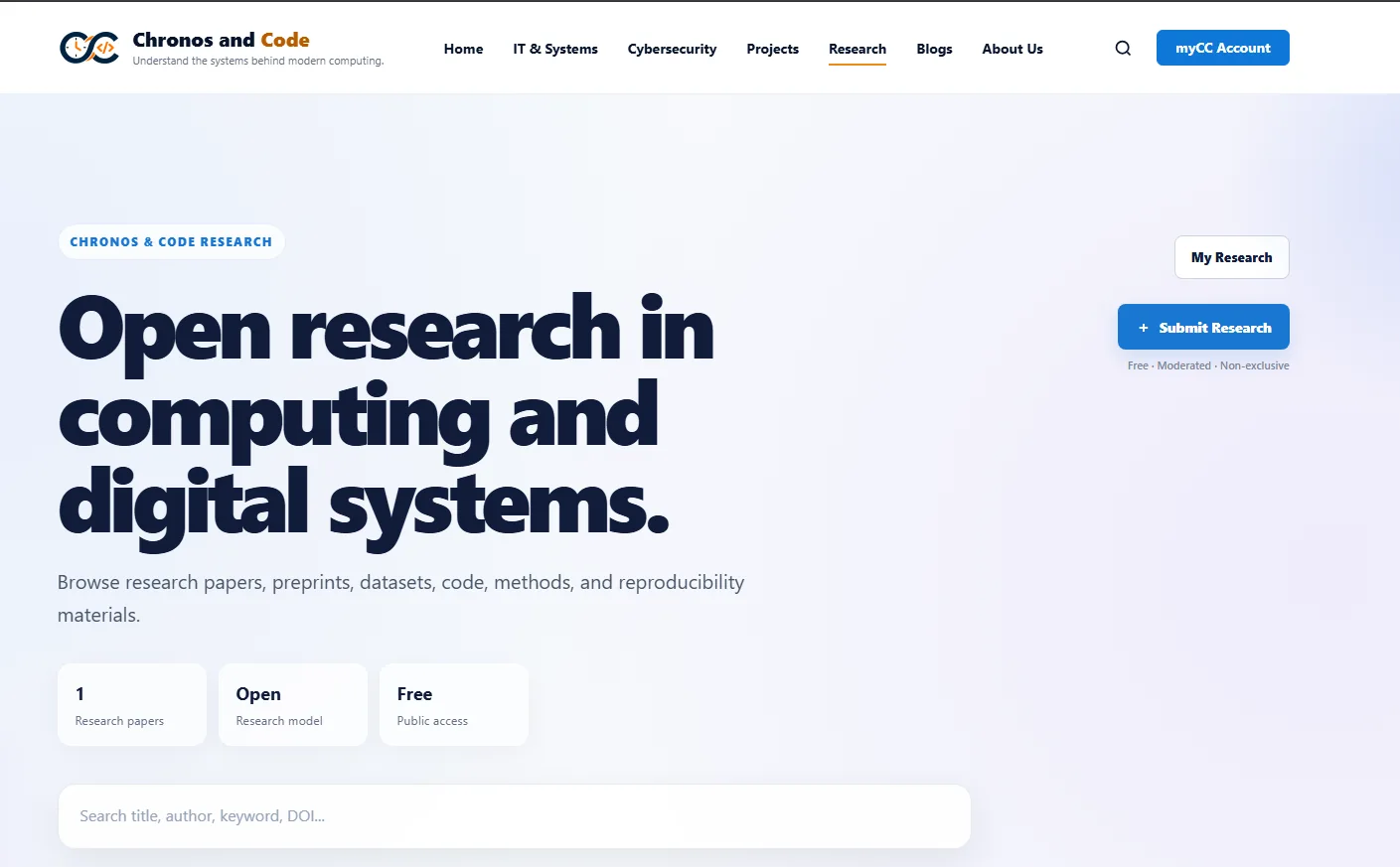
Go to the Research section and select + Submit Research. Sign in to MyCC if prompted.
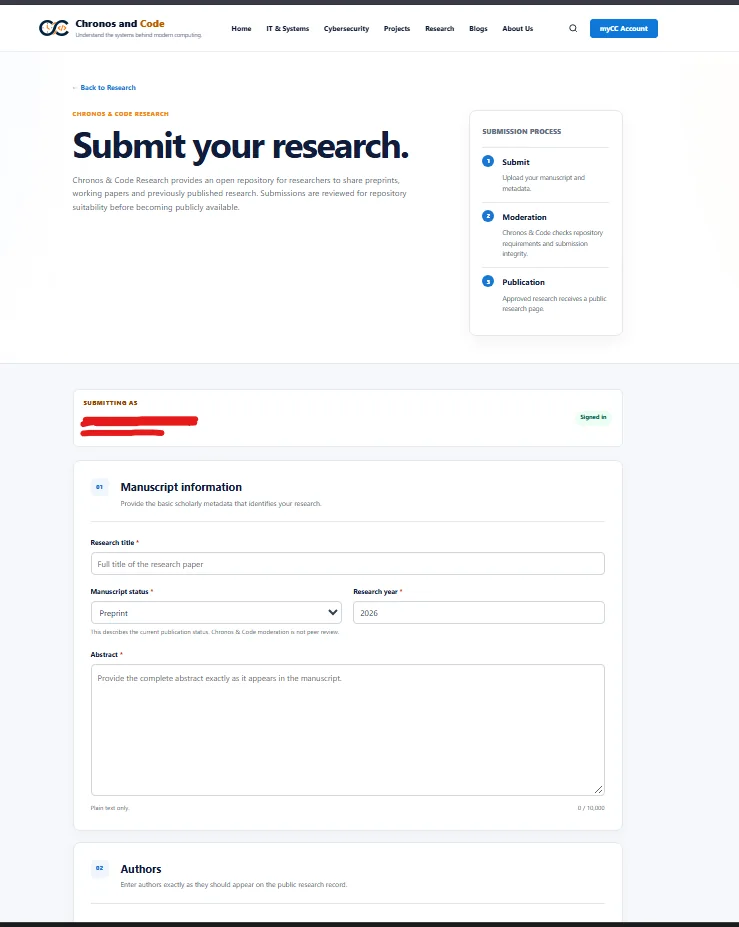
Provide research metadata and files
Enter the manuscript title, current manuscript status, research year, abstract, and author information. Continue through the remaining sections to supply the manuscript PDF, optional supporting materials, and other requested details.
Choose a distribution license
Review the offered license and the author declarations carefully. You must have the necessary rights and any required coauthor approvals; submission itself does not guarantee publication.
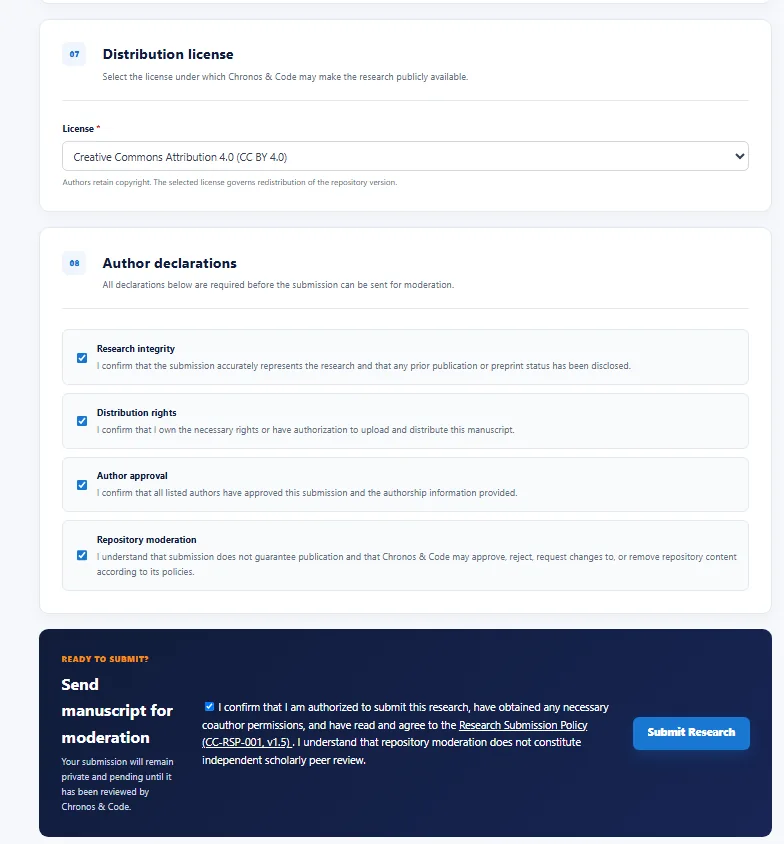
Submit for moderation
Read the Research Submission Policy, accept the applicable terms, and select Submit Research. The confirmation screen states the research is awaiting moderation and is not yet public.
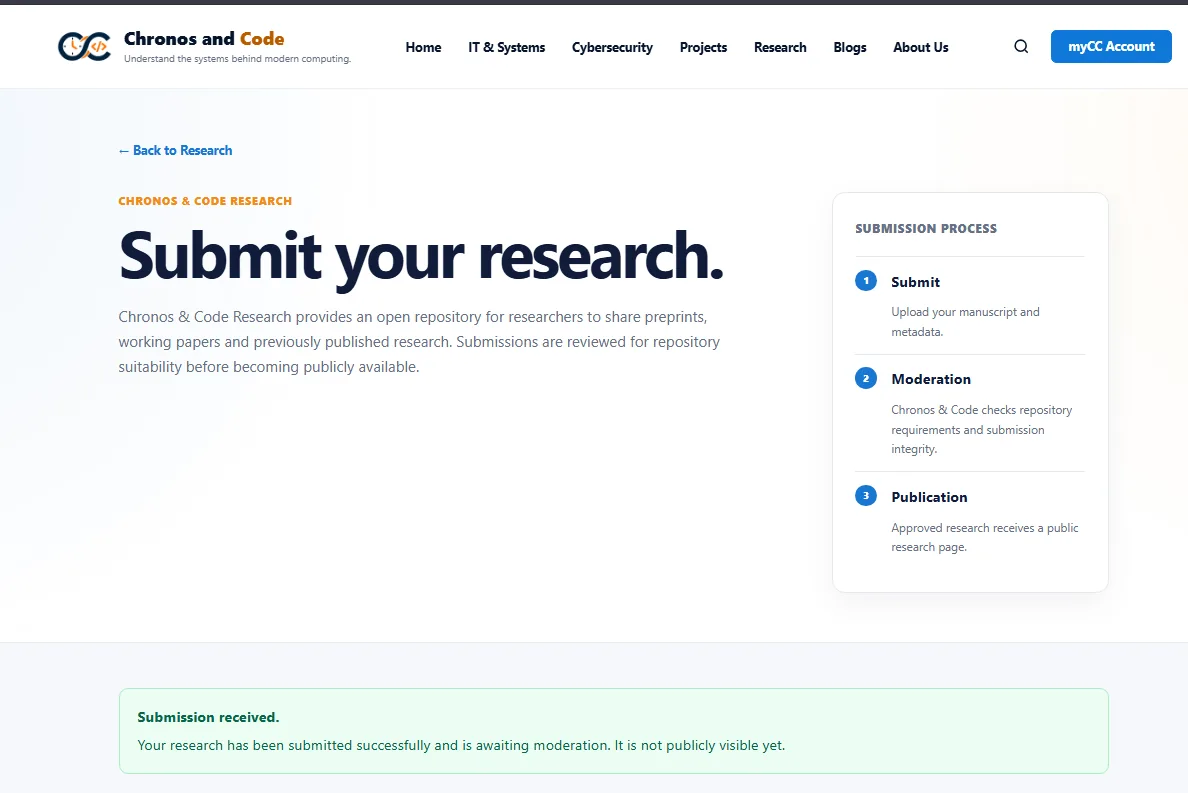
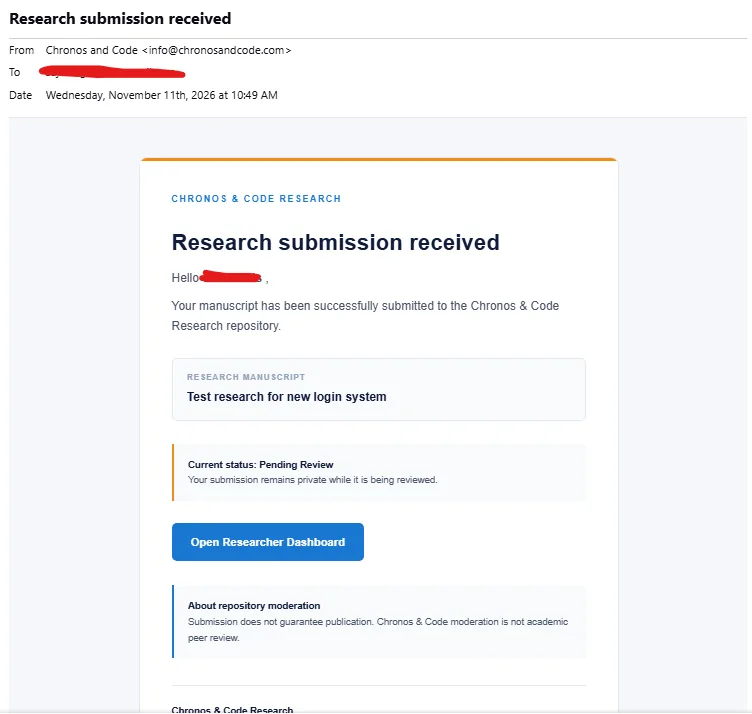
Research acknowledgement
A confirmation email identifies the submitted manuscript and its Pending Review status. The repository does not independently peer-review the manuscript.
PART FOUR
Track editorial decisions
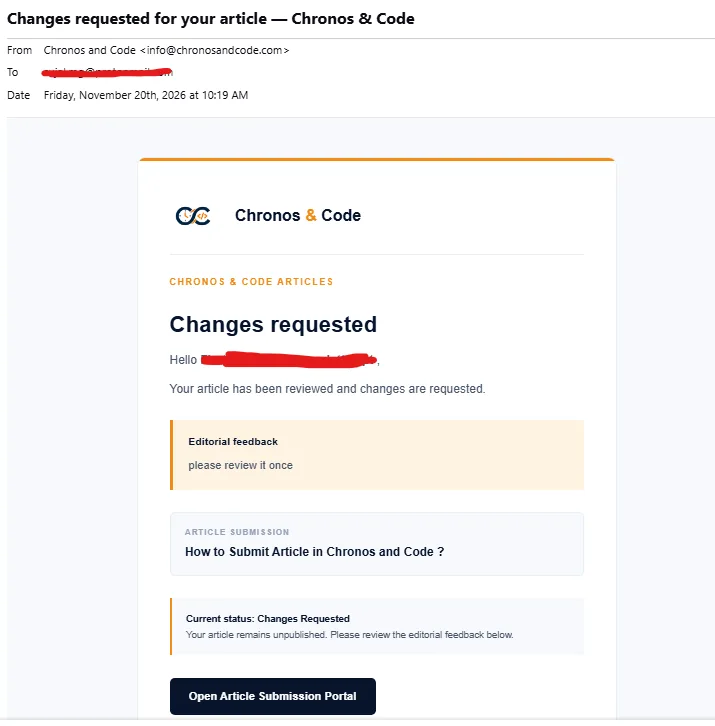
Editorial decisions can include Pending Review, Changes Requested, Approved, and Rejected. An approval is not always the same as a public release; follow the status and the instructions in your contributor dashboard.
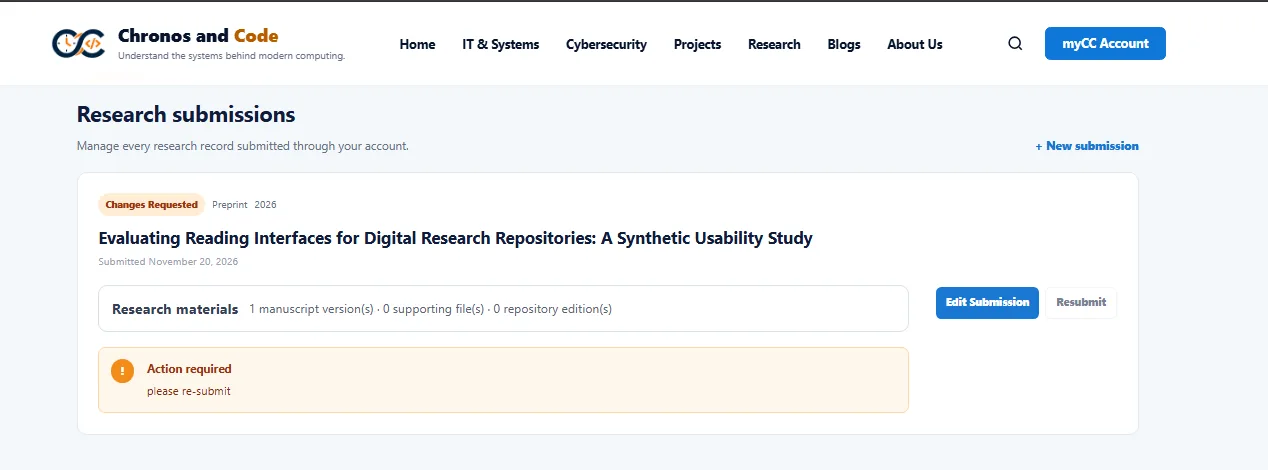
Read the editor’s feedback, make the necessary corrections, and submit an eligible revision through the article portal.
Open your research dashboard, review the moderation feedback, edit the submission if permitted, and resubmit.
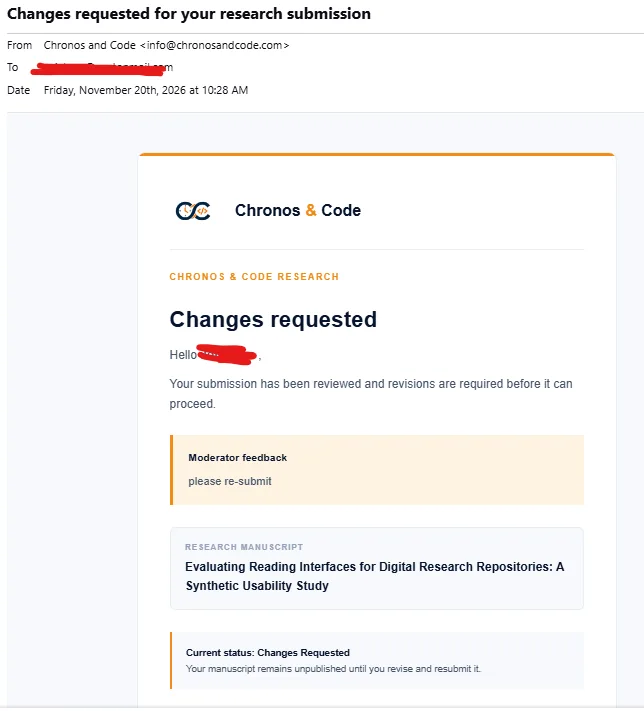
Resubmit research after feedback
The Research submissions dashboard shows the Changes Requested label, feedback, and controls such as Edit Submission and Resubmit where available.
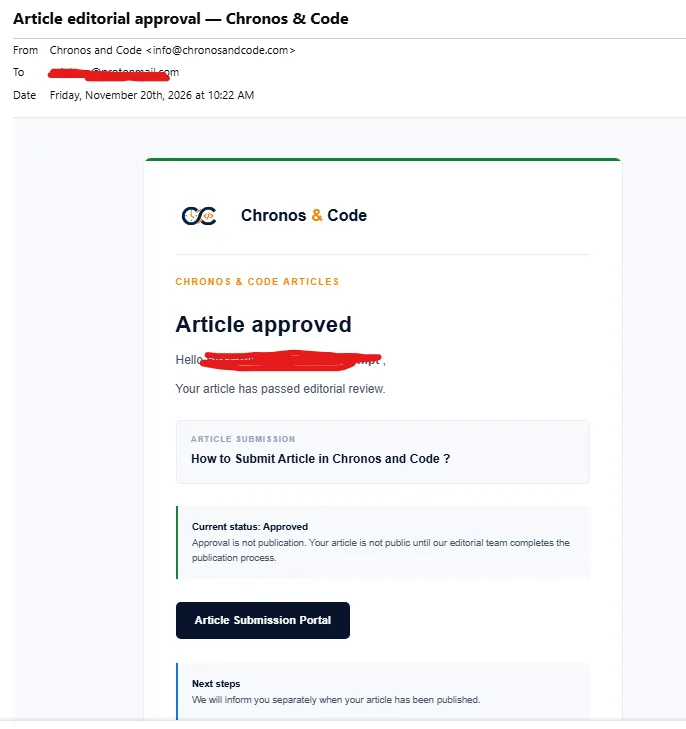
Editorial approval confirms the article passed review, but the email explicitly notes that approval itself is not publication.
After editorial release, a separate publication email provides a link to the live article.
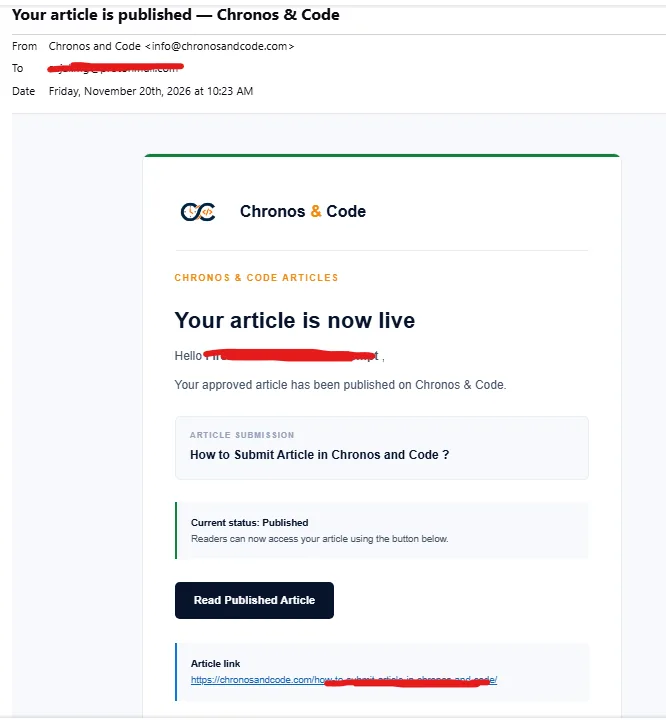
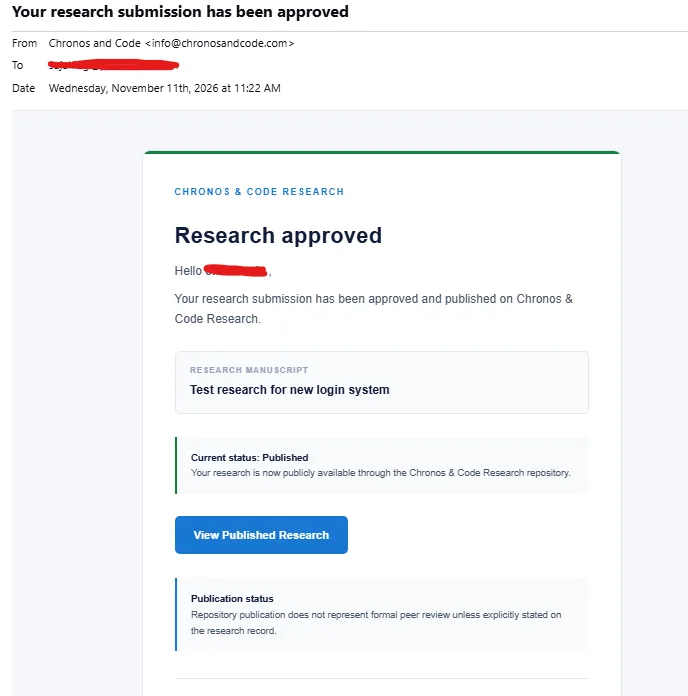
Research publication
When approved research is released publicly, the publication notification provides access to the research record. Repository hosting does not imply formal academic peer review.
BEFORE YOU SUBMIT
Policies, identifiers, and support
Published research records may receive a CCRID, and published articles may receive a CCAID. These are internal Chronos & Code identifiers, not registered DOIs. Corrections, withdrawal requests, and public availability are governed by the applicable policies and editorial decisions.
Research: research.editorial@chronosandcode.com
Articles: articles.editorial@chronosandcode.com
Support: support@chronosandcode.com
Screenshots illustrate the contributor interface as of November 2026. Actual field labels and workflow options may change. Example emails and test submissions are shown for demonstration.