
On this page
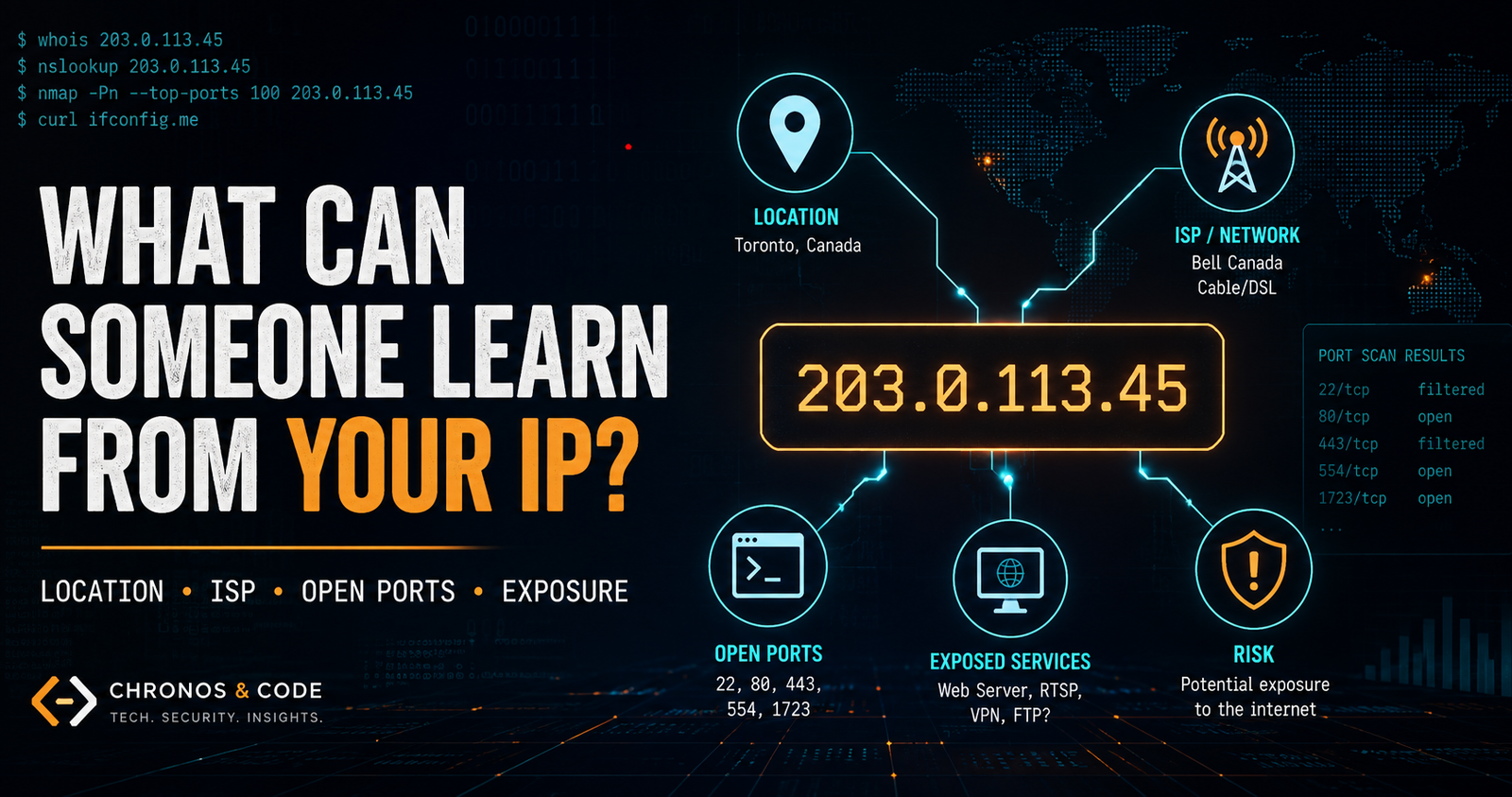
In movies, someone types fast, says “I’m tracing the IP,” and two seconds later a red dot lands on your house on a map. That’s not how it works.
But the opposite idea, “an IP tells you nothing” is also wrong.
Your IP address is exposed almost every time you use the internet.
The truth sits in the middle. Your IP address alone won’t hand someone your name or your front door. It will leak a surprising amount of context about you, your network, and what you’ve left exposed to the internet. And in the wrong situation, that context is enough to start an actual attack.
This post breaks down exactly what’s learnable, what isn’t, and the real tools people use to pull it. Everything here you can run on your own IP to see what you’re leaking.
What Exactly Is an IP Address?
Before we talk about what leaks, you need the basics, because a lot of “IP hacking” fear comes from not understanding this part.
An IP address is a network identifier used to route data to the correct network interface or endpoint. A public IP may represent a router, server, NAT gateway, or other internet-facing endpoint rather than one specific device.
IPv4 : the old, common one. 32 bits, looks like 142.250.72.14. There are only about 4.3 billion of these, and we ran out years ago.
IPv6 : the newer one. 128 bits, looks like 2607:f8b0:4004:80b::200e, and provides such a massive address space that practical address exhaustion is not expected.
Now the important split:
Private IP: the address your device uses inside your home network. Things like 192.168.1.5 or 10.0.0.12. These are not reachable from the internet. Every home network reuses the same private ranges.
Public IP: the single address your router shows to the outside world. When people say “your IP,” this is the one they mean.
Here’s the key part most people miss: your phone, laptop, TV, and smart fridge all share one public IP thanks to something called NAT (Network Address Translation). Your router sits in the middle and keeps track of which reply goes to which device. So “your IP” is really “your household’s IP.”
A few more terms that matter later:
Dynamic IP: your ISP rotates your public IP every so often. Most home connections are like this.
Static IP: a fixed public IP that never changes. More common for businesses and servers.
CGNAT (Carrier-Grade NAT): a lot of mobile and some home connections now share one public IP across many customers, using a range like 100.64.0.0/10. This matters a lot for privacy, and we’ll come back to it.
Okay. Now let’s see what actually leaks.
The Short Version
| Can a hacker learn this from your IP? | Answer |
| Your ISP / who owns the IP | ✅ Yes, easily |
| Your rough location (city/region) | ✅ Usually |
| Your exact home address | ❌ No (not without your ISP + a court) |
| Your name / phone / identity | ❌ No, not from the IP alone |
| Whether you’re on VPN, mobile, or a datacenter | ✅ Yes |
| Your device’s hostname | ⚠️ Sometimes |
| What services/ports you have open | ✅ Yes, if you’ve exposed them |
| Your browsing history / files | ❌ No |
Now the deep dive on each.
What a Hacker can learn (and how)
1. Your ISP and who owns the IP – via WHOIS
Every public IP is registered to someone. Not you personally but the organization that controls that block of addresses. You can look this up with WHOIS.
WHOIS queries big public databases run by the five Regional Internet Registries (RIRs):
ARIN : North America
RIPE NCC : Europe, Middle East, Central Asia
APNIC : Asia-Pacific
LACNIC : Latin America
AFRINIC : Africa
Run this on any IP:whois 8.8.8.8
For a home connection, WHOIS shows you the ISP (like Bell, Rogers, Comcast), the netblock range that IP belongs to, and an abuse contact email. It does not show the individual customer’s name. So, WHOIS may reveal that the address belongs to Rogers Communications and show the registered network block. Additional IP-intelligence databases may then classify the address as residential, mobile, hosting, or business infrastructure. It still does not reveal the individual subscriber’s name or home address.
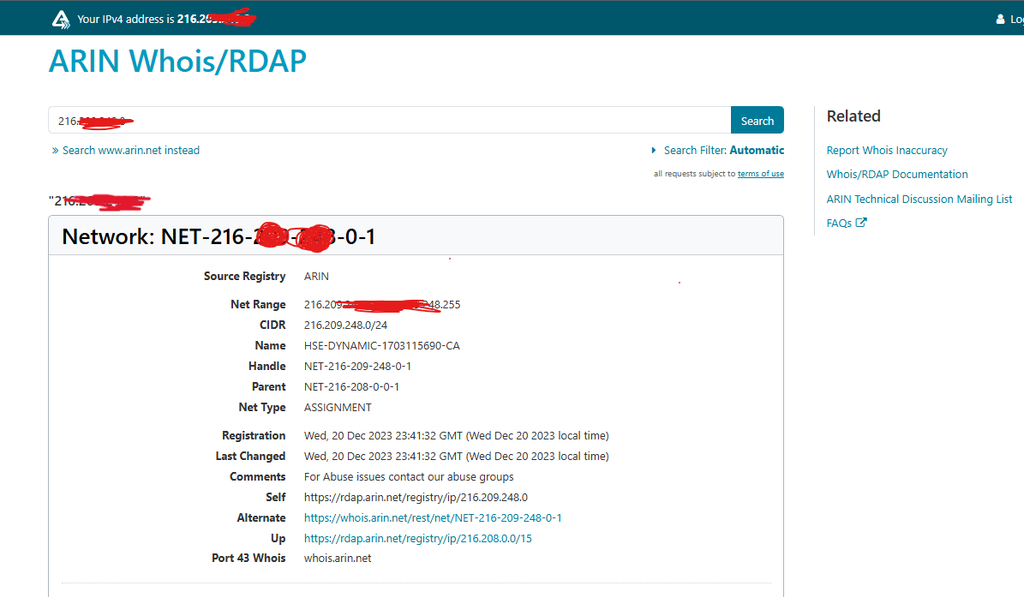
That distinction is the whole point of this post. Keep it in your head.
2. Your network’s ASN – the bigger picture
Every network on the internet has an Autonomous System Number (ASN). Think of it as the ID for the whole network your ISP runs. For example, an IP might map to AS812 – Rogers Communications.
Why an attacker cares: the ASN tells them what kind of network you’re on. A residential ISP ASN, a mobile carrier ASN, and a cloud/hosting ASN all look completely different. That’s how tools instantly know if an IP is a real person’s home connection or a server sitting in a datacenter.
You can pull it with the same WHOIS output, or with online ASN lookup tools.
3. Your rough location – via Geo-IP
This is the part everyone worries about, so let’s be precise.
Geo-IP databases (like MaxMind GeoIP2 and IP2Location) map IP ranges to locations. Companies build these by combining WHOIS data, ISP routing info, and other signals. Websites use them for “content in your language” and fraud checks.
What Geo-IP actually gives you:
Country : generally much more reliable than city-level geolocation, although accuracy still varies by provider, network type, and IP range.
Region / city : often right, but not always, and it’s usually the location of your ISP’s regional equipment, not your house.
Street address : No. That “map pin” you see on IP lookup sites is usually just the center of the city or the ISP’s registered location. It regularly lands miles away from the real person.
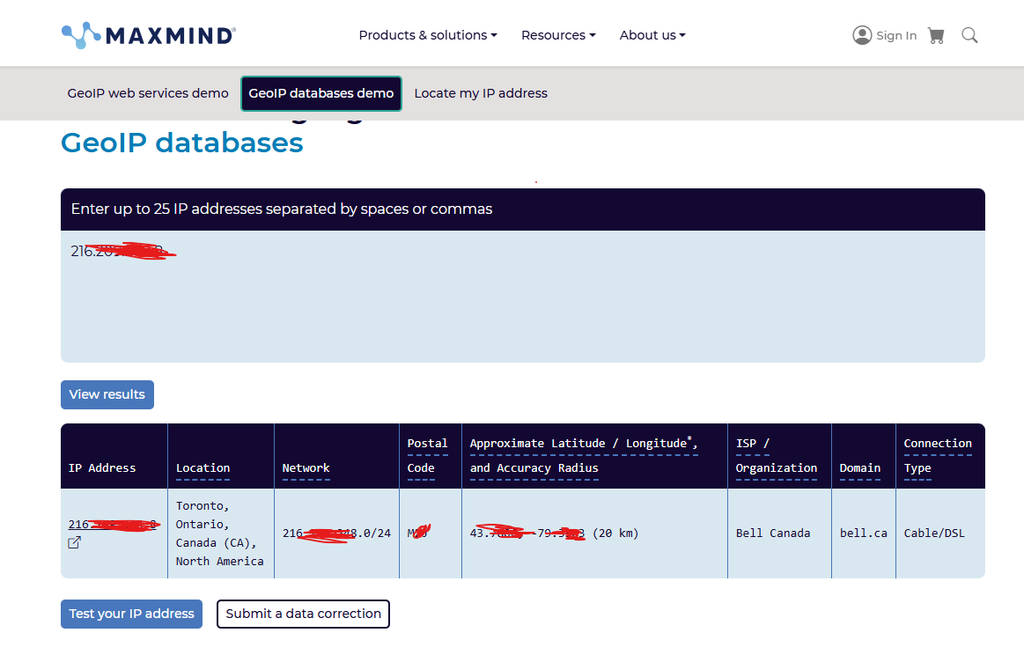
So a hacker can reliably learn “this person is somewhere around Toronto.” They cannot learn your neighborhood from the IP alone. The scary precise pin is theater.
One exception worth knowing: mobile IPs are often worse for location, not better, because carriers route huge areas through central gateways. Your phone’s IP might geolocate to a city you’ve never even been to.
4. Your hostname – via reverse DNS (PTR records)
Sometimes an IP has a reverse DNS entry, a hostname attached to it. You check it with:
dig -x 71.199.24.10
# or
nslookup 71.199.24.10
Residential IPs often return something like:
pool-71-199-24-10.tor.on.rogers.com
Look at what that one string leaks: the ISP (rogers), the region (on = Ontario), even the city code (tor = Toronto), and the fact that it’s a residential “pool” (dynamic) address. That’s a lot of free context, and you didn’t have to do anything to give it up, your ISP set it.
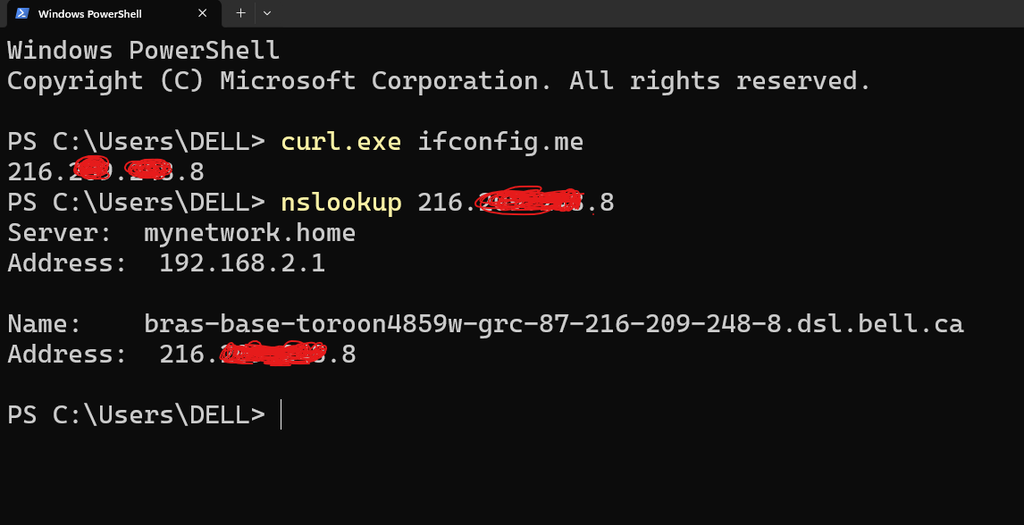
Business and server IPs leak even more, since hostnames like mail.company.com basically announce what the box does.
5. Whether you’re hiding behind a VPN, proxy, or Tor
People assume a VPN makes them invisible. It changes which IP you show, but the new IP is often obviously a VPN.
Here’s why: when someone WHOIS-lookups a VPN IP, the owner comes back as a hosting/VPN company (like a datacenter provider), not a residential ISP. The ASN is a hosting ASN. There are also public lists that flag known VPN, proxy, Tor exit, and datacenter IP ranges.
So an attacker (or a website’s fraud system) can usually tell:
“This is a residential connection” → probably a real person
“This is a datacenter IP” → VPN, bot, proxy, or scraper
A VPN still hides your real home IP, which is the important win. It just doesn’t hide the fact that you’re using one.
6. What services and ports you’ve left open – via port scanning
This is where it stops being trivia and starts being a real attack surface.
Your public IP is a door to your network. That door has 65,535 ports. Most should be closed. But if you’ve ever set up port forwarding for a game server, a security camera, remote desktop, a home NAS, you’ve opened one, and anyone on the internet can knock.
The classic tool is nmap:
#Basic scan of common ports
nmap 203.0.113.45
#Scan all ports + grab service versionsnmap -p- -sV 203.0.113.45
A scan tells an attacker which ports are open and, with -sV, often the exact software and version running there (“banner grabbing”). Common scary finds are:
Port 3389 (RDP) : remote desktop exposed to the whole internet. A top way home and business machines get owned.
Port 445 (SMB) : Windows file sharing exposed. This is how worms like WannaCry spread.
Port 22 (SSH) : fine if locked down, a target for brute-force if not.
Router admin panels, IP cameras, NAS logins often left on default passwords.
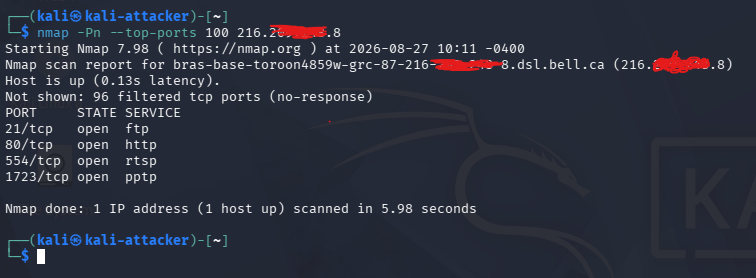
In my own external test, four of the 100 commonly scanned TCP ports responded as open while the remaining 96 were filtered. This is exactly why an IP address can become useful during reconnaissance: knowing the address alone reveals little, but probing the reachable network surface begins to expose additional technical information.
Once someone knows the exact version of the service, they can search for a known vulnerability for that version and try it. That’s the whole game: open port → identified service → known exploit.
7. What’s already been scanned – via Shodan and Censys
Here’s the part that surprises people. Attackers often don’t even need to scan you. Search engines like Shodan and Censys continuously scan the entire internet and index everything they find. Your exposed devices may already be sitting in their database.
Go to shodan.io and search your own public IP:ip:203.0.113.45
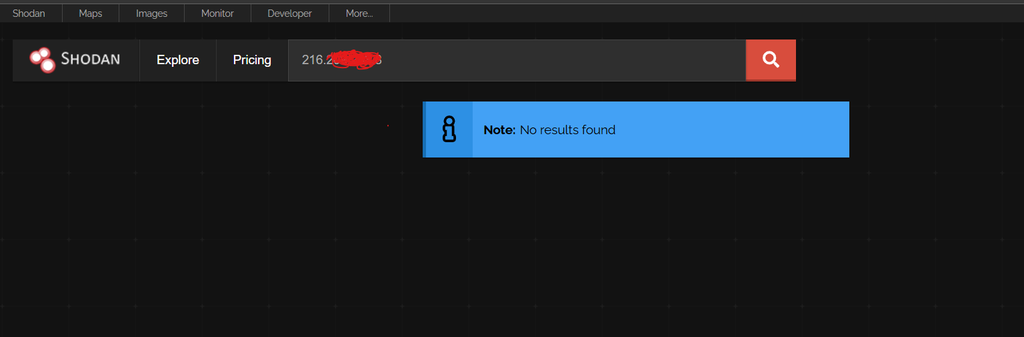
In my own test, Shodan had no indexed observations for the address. Interestingly, my external Nmap scan still identified several reachable ports. This demonstrates an important limitation of passive reconnaissance databases: absence from Shodan does not necessarily mean that nothing is currently exposed.
You might see your open ports, service banners, your router’s model, an exposed camera stream, or a database that should never have been public, all indexed, searchable, and sorted. People find open webcams, industrial controls, and unsecured databases this way every single day.
This is honestly the single most useful thing to try after reading this post. Look yourself up.
8. Correlation – the real danger (OSINT)
An IP by itself is limited. An IP combined with other leaked data is where people actually get burned.
Say your IP shows up in a leaked database, a forum post, a game server log, or a Discord IP-grabber link. Now someone can tie “this IP” to “this username” to “this email” to a data breach that includes your real name. None of those pieces alone is dangerous. Stacked together, they de-anonymize you.
This is called OSINT (Open-Source Intelligence), and the IP is often just one thread in the web. That’s why “it’s only an IP” undersells the risk, it’s not about the IP, it’s about what it connects to.
What your IP does NOT reveal
Let’s kill the fear that doesn’t deserve to live, because being accurate matters:
Your name. The IP is not tied to your identity in any public database. Only your ISP knows which customer had which IP at which time, and they only hand that over with a court order or law enforcement request.
Your exact home address. See the Geo-IP section, city-level at best from public data.
Your browsing history, messages, or files. Your IP is a routing number, not a window into your device. Someone can’t “read your data” just because they know your IP.
A guaranteed way in. If you have no open ports and an updated router, your public IP is basically a locked door with no handle. Knowing it doesn’t get anyone inside.
So the honest summary: an IP leaks context and exposure, not identity and content.
When an IP goes from “info” to “attack surface”
Pulling it together, here’s the actual risk chain, in order:
They get your IP: from a game, a Discord link, an email header, a website you run, a leak.
They profile it : WHOIS, ASN, Geo-IP, reverse DNS. Now they know your ISP, rough area, and connection type.
They scan it : nmap or Shodan. Now they know what’s exposed.
They target what’s exposed : an old router firmware, an open RDP, a camera on default creds, an unpatched service.
Or they just flood it : a DDoS attack doesn’t need any open port. Knowing your IP is enough to bury your connection in junk traffic and knock you offline. This is exactly what “booting” someone offline in online games is.
The good news: steps 4 and 5 are the only ones that actually hurt you, and both are very preventable.
One more note on CGNAT: if you’re behind carrier-grade NAT (common on mobile and some fiber plans), you don’t even have your own public IP, you share one with hundreds of other customers. That makes you a much harder target, because there’s nothing individual to port-scan or forward to. It’s an accidental privacy upgrade.
Try it on yourself
Don’t take my word for any of this. Run these on your own IP and see what you leak. (Only scan IPs you own, port-scanning other people’s stuff can be illegal.)
#1. Find your public IP
curl ifconfig.me

#2. See who owns it and where it's registered
whois <your ip>

#3. Check if it leaks a hostname
dig -x <your ip>

#4. Scan your own open ports
nmap -sV <your ip>
Then search your IP on shodan.io to see what the internet already knows about you. If anything shows up that you didn’t expect an open port, a device, a login page : that’s your to-do list.
How to actually protect yourself
Practical, in rough order of impact:
Close ports you don’t need. Log into your router and kill any port forwarding you’re not actively using. This alone removes most of the risk.
Update your router firmware and change the default password. The router is the front door. Old firmware and admin/admin are how most home networks fall.
Turn off UPnP if you don’t need it. UPnP lets devices open ports on your router automatically, convenient, and a common way things get exposed without you knowing.
Use a VPN when you want to hide your real IP especially on public Wi-Fi, or in games/apps where strangers can grab it. It won’t make you invisible, but it swaps your home IP for the VPN’s.
Secure remote access. If you must expose RDP or SSH, put it behind a VPN, use key-based auth, and never leave it open to the whole internet.
Lock down IoT. Cameras, NAS boxes, smart devices change default passwords, keep them updated, and don’t expose them directly to the internet.
Run a firewall on your devices and your router, and leave it on.
Check yourself on Shodan every so often. If you’re not in it with anything exposed, you’re in good shape.
At the end,
Your IP address is not a secret map to your house, and anyone who tells you it is has watched too many hacker movies. What it really is: a starting point. It leaks your ISP, your rough area, your connection type, and the part that actually matters, whatever you’ve left exposed to the internet.
The IP itself is basically harmless. Your open ports and outdated devices are not.
So the takeaway isn’t “panic about your IP.” It’s: assume people can see your IP, and make sure that when they look, there’s nothing interesting behind it.
Enjoyed this? It’s part of the Cybersecurity series on Chronos & Code, where I break down real security concepts with the actual tools instead of hand-waving.
If this piece gave you something to think about, you can support my writing here ☕

1 comment